Run a community Connecting and moving
Connect with other servers
Two Sideporch servers can connect, like two companies in Slack Connect. Once both admins agree, you can share channels between them, and people can find each other and write directly. Everyone stays on their own server, with their own account. New in 0.5.0.
Connect two servers
Each server needs its public address, so start both with --public-url, and put them behind HTTPS. Sideporch only connects to servers on public addresses, not to ones on a private network.
- Under Admin → Connections, give your server a name the other side will recognise, such as The garden club.
- Enter the other server’s address under Connect to another Sideporch, add a note for their admin, and select Ask to connect.
- Their admin sees your request, with your note and your server’s key fingerprint, under Admin → Connections, and selects Accept or Decline.
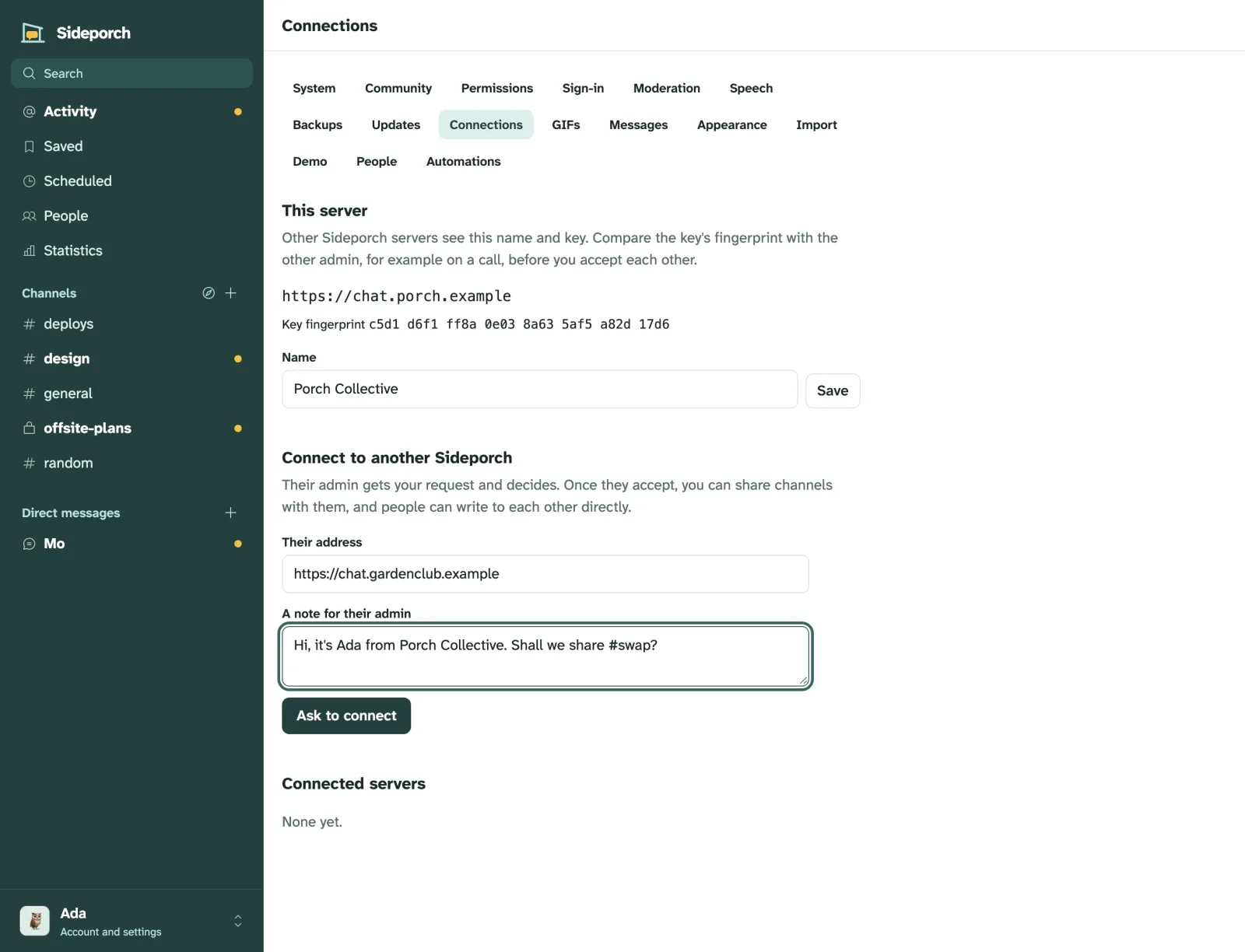
If both admins ask each other at the same time, the servers connect at once.
Share a channel
An admin opens a channel’s Settings and chooses a connected server under Other servers. The other server’s admin finds the offer under Admin → Connections and selects Take it. That makes a copy of the channel on their server, with the latest 50 conversations and their threads.
From then on, messages, replies, edits, deletions, reactions and files travel between the two copies. People are shown with the server they’re from, such as @bea@chat.example.org. Mentions work across servers, and people get notified on their own server. When someone writes in a shared channel, someone is typing… shows on the other servers too.
A server can share a channel with several servers. The server that shared it is the channel’s host: it passes everything on to the others.
Private channels can be shared too. Only their members see them, on both sides. Members of either server can add people from their own server.
Write to someone directly
Under People, select Find someone to search the connected servers by name, and then Message. The conversation appears on both servers, like any other direct conversation.
Admins decide per connected server whether people there may start direct conversations with people here: People there may write to people here directly under Admin → Connections.
Stop sharing or disconnect
- Stop sharing in a channel’s settings ends sharing with one server. On the other side, Stop taking part does the same. Both copies keep what was said so far.
- Disconnect under Admin → Connections ends everything with that server: every shared channel, and direct conversations. Messages stay on both servers.
What’s not shared
- Polls stay on the server they were made on, so shared channels don’t offer them.
- Accounts and moderation. People from another server can’t sign in here, and each server’s admins look after their own people. If someone from a connected server causes trouble, stop sharing or disconnect.
How it’s kept safe
- Servers connect only when both admins agree, and each pins the other’s key when they connect.
- Every request between servers is signed with the server’s Ed25519 key and carries the time and a one-time value, so it can’t be forged, changed, or replayed. Unsigned requests, and requests from servers that aren’t connected, are refused.
- A server only speaks for its own people. The host passes on messages from the others, but never on behalf of the server it sends them to.
- Typing notices are signed the same way, but they are never stored, and they reach only people who could see the typing on their own server, for a channel the two servers share. A typing notice from a server that doesn’t share the channel, or for someone it doesn’t speak for, is refused without saying why.
- The server’s private key is encrypted with the same secret key as automation secrets, so keep that key in your backups.
When the other server is unreachable, Sideporch keeps what’s waiting and tries again, at most every hour, until it gets through. Admin → Connections shows how much is waiting and why. Typing is the exception: it isn’t kept. If the other server is slow or down, the dots just don’t show there.