Chatting
Sideporch works the way people know from Slack: conversations happen in channels, side conversations in threads, and private ones in direct messages.
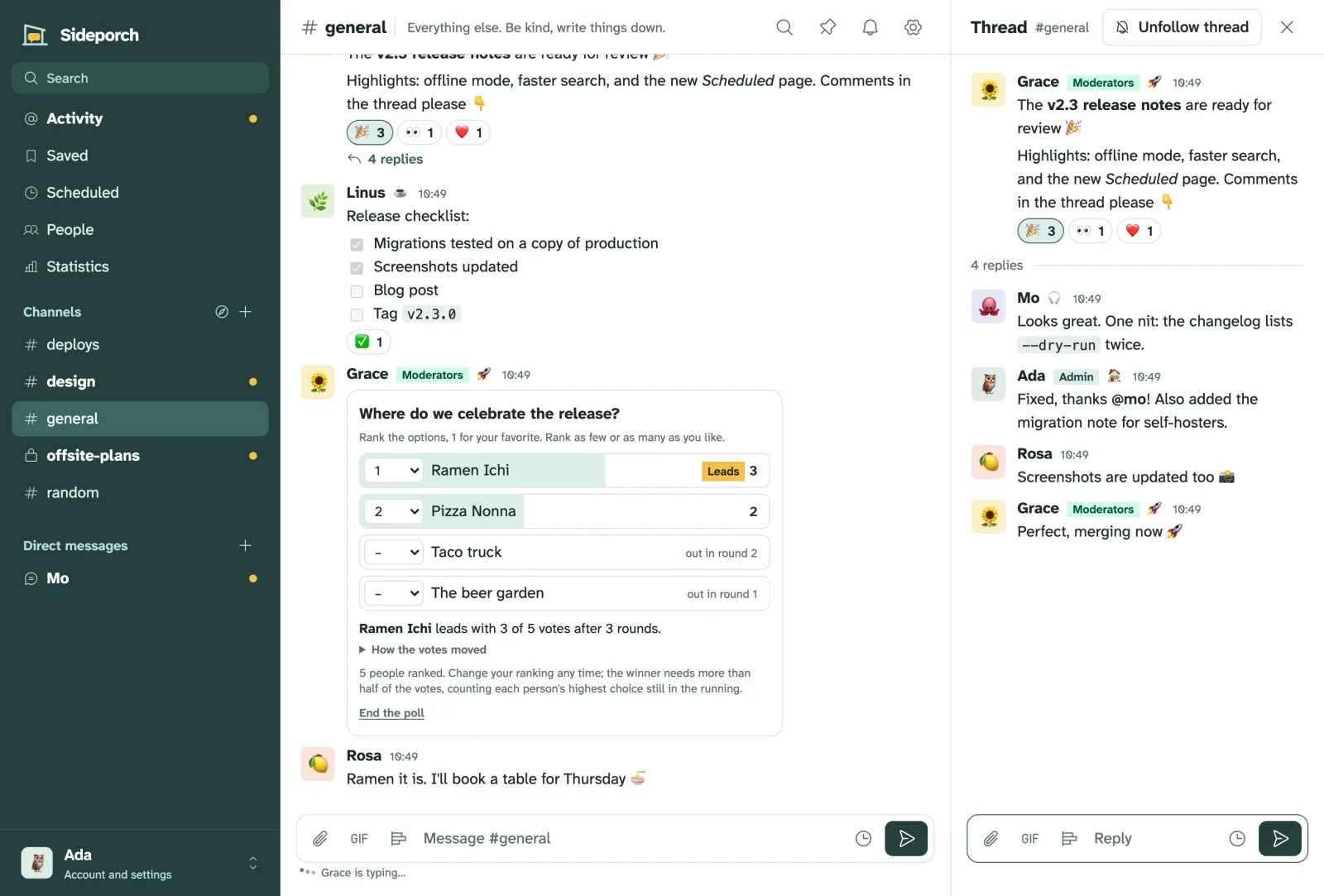
Channels, threads and direct messages
- Public channels are open to everyone. Find them under Browse channels and join the ones you care about; leave the ones you don’t.
- Private channels are for the people added to them. Only their members see them, or can find their messages in search.
- Direct messages are between you and one other person. For several people at once, open People, tick them and start a group conversation. It holds up to nine people, you included, and everyone in it sees the same messages, with the names of the others in the sidebar. Members can’t change once it starts: to add someone, start a new group. Starting the same group again with the same people opens the existing one.
- Threads keep side conversations out of the channel: reply to any message to start one. You follow the threads you’ve written in, and their replies show up in Activity. To follow a thread without replying, choose Follow thread in its panel or in a message’s menu; Unfollow thread stops its replies reaching you, even in a thread you wrote in. Mentions of you still arrive, and replying in the thread follows it again. Other servers that share the channel never hear about it.
Messages arrive live. The sidebar marks channels with unread messages, and someone is typing… shows with moving dots under the box while someone writes; it clears as soon as they empty the box. When someone writes to you in a direct message, the dots show on that conversation in the sidebar too, wherever you are.
Write messages
Messages are Markdown, as on GitHub:
| Write | For |
|---|---|
**bold**, *italics*, ~~struck~~ | Emphasis |
`code` and fenced code blocks | Code, highlighted by language |
- item, 1. item, - [ ] task | Lists and checklists |
> quote | Quotes |
Tables with | | Tables |
@ada, @channel, @here | Mentioning someone, or everyone in the channel |
:tada: | Emoji by name |
Code blocks marked ```mermaid are drawn as diagrams with Mermaid: flowcharts, sequence diagrams, timelines and more.
Press Enter to send and Shift Enter for a new line. On phones, Enter makes a new line and the send button sends.
Reactions, emoji and GIFs
- React to a message with any emoji. The picker shows your favourites first; choose them in your profile.
- Custom emoji: anyone allowed to can add the team’s own, and use them in messages and reactions.
- GIFs come from the team’s own library, or from GIPHY or KLIPY if an admin sets them up.
Files, images and links
Paste or drop files and images into the box, or use the paperclip. Files can be up to 25 MB. Images show in the conversation; links get a preview with their title, description and picture, unless an admin turns previews off.
Edit, delete and pin
- Edit your messages from their menu, or press ↑ in an empty box to edit your last one. Admins can limit editing to a while after sending; by default there’s no limit.
- Delete your messages from the same menu.
- Pin important messages to the channel. The pin in the channel’s header lists them.
- Save messages you want to come back to. They’re under Saved.
Announcement channels
A channel’s managers can make it an announcement channel: only they start posts, while everyone else replies in threads and reacts. They can also limit replies and reactions. Use it for news, rules or releases, where the channel itself should stay readable.
Buttons from automations
Messages from automations can have buttons under them, for approvals and the like. Clicking one tells the automation, which usually updates the message to say who clicked.