Run a community People and access
Sign-in and security
Everyone manages how they sign in under Sign-in and security in their account menu. Admins decide what signing in must take under Admin → Sign-in.
Ways to sign in
- Passkeys: sign in with a fingerprint, face or device PIN, from the sign-in form’s autofill or its passkey button. They can’t be phished or guessed, and they sync between your devices.
- Authenticator apps (1Password, Google Authenticator, Aegis…) ask for a six-digit code after the password. Setting one up gives you ten single-use recovery codes, for when you lose your phone.
- Email: with an SMTP server set up, people confirm an address and can sign in with a link, or reset a forgotten password themselves. Sign-in and reset links work once, for 15 minutes; links that confirm an address work for 24 hours.
- Cloudflare Access: behind Cloudflare Access, people whom Access let in are signed in without a password.
- Single sign-on: sign in with your team’s identity provider, linked to your account, as set up in single sign-on with OpenID Connect.
Start with a passkey
New in 0.7.0: setting up Sideporch, joining with an invite, and open sign-up offer Create account with a passkey first. Fill in your name and username, confirm with your fingerprint, face or screen lock, and you’re in, with no password to remember. A passkey counts as both steps, so the account meets every sign-in setting. A password stays available below it, and is the only choice where the browser can’t make passkeys or when sign-ups wait for approval.
An account that started with a passkey can add a password later under Account, without an old one. Its only passkey can’t be removed until it has a password or another passkey.
Limits on guessing
After 10 wrong passwords from one address within 15 minutes, signing in from there waits until the 15 minutes have passed. After 20 wrong passwords for one account from anywhere, that account waits too. The second limit is higher, so others can’t easily lock someone out. Authenticator codes allow five tries per sign-in, and passkeys and email links can’t be guessed.
What signing in takes
Under Admin → Sign-in, pick one:
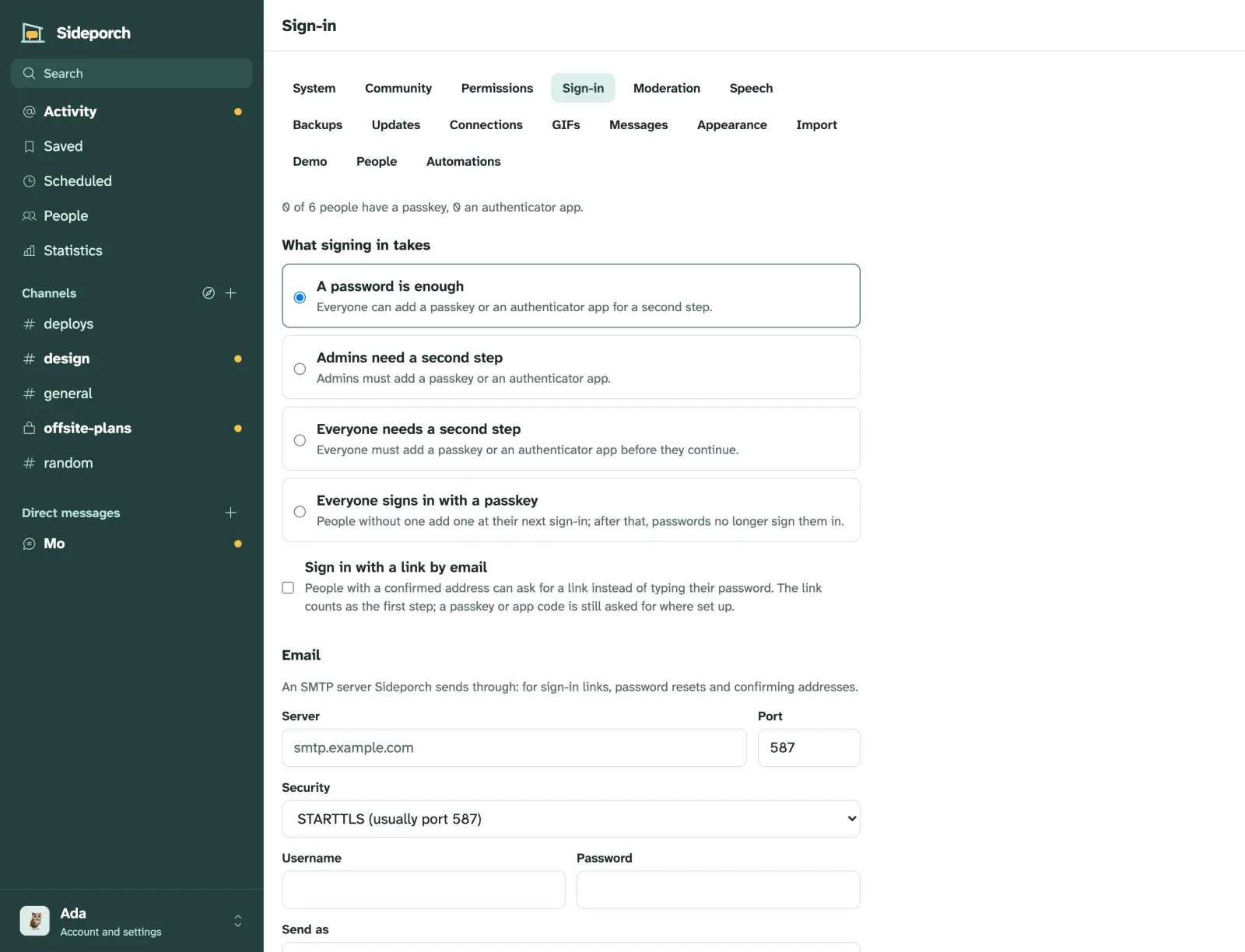
| Setting | Means |
|---|---|
| A password is enough (the default) | Everyone can add a passkey or an authenticator app for a second step. |
| Admins need a second step | Admins must add a passkey or an authenticator app. |
| Everyone needs a second step | Everyone must add a passkey or an authenticator app before they continue. |
| Everyone signs in with a passkey | People without one add one at their next sign-in; after that, passwords no longer sign them in. |
People who don’t meet the setting yet are walked through adding what’s missing at their next sign-in. Every way of signing in, including email links, goes through the same second step, so it can’t be skipped.
After a lost phone, an admin resets someone’s passkeys and authenticator app from their profile; they set them up again at their next sign-in. Someone who only had a passkey also needs a reset link from their profile to choose a password.
When the only admin forgot their password, make a reset link on the server, which works for 24 hours:
sideporch reset-link ada --data /var/lib/sideporch
docker exec sideporch /sideporch reset-link ada            # with Docker
fly machine exec MACHINE_ID "/sideporch reset-link ada"    # on Fly.io
When their passkey or authenticator app is what’s lost, add --reset-sign-in: it removes those and the account’s MCP tokens, signs the account out everywhere and clears its password, so whoever has the lost device can’t get in, and the link is the only way back. Until a new password is set through a reset link, neither email links nor Cloudflare Access sign the account in, even after the link expires; run the command again for a new one. Make new MCP tokens afterwards. If the lost device was signed in elsewhere, such as to the mailbox or Cloudflare Access, end those sessions there, and look over invites and who is an admin, in case someone used the account meanwhile. They add a new passkey afterwards.
sideporch reset-link ada --reset-sign-in --data /var/lib/sideporchSideporch needs no email. To send sign-in links, password resets and address confirmations, give it an SMTP server under Admin → Sign-in:
| Field | For example |
|---|---|
| Server | smtp.example.com |
| Port | 587 |
| Security | STARTTLS (usually port 587), TLS (usually port 465), or none, for a relay on this network |
| Username and password | from your mail provider |
| Send as | Sideporch <chat@example.com> |
The password is encrypted with the secret key, like automation secrets. Send a test email checks the settings.
Then turn on Sign in with a link by email if people may sign in with a link instead of their password. The link counts as the first step; a passkey or app code is still asked for where set up.
Sideporch doesn’t send notifications by email, only these sign-in messages.
Cloudflare Access
Cloudflare Access signs people in with your identity provider (Google, Microsoft Entra, GitHub, one-time PINs by email…) before they reach the server. Sideporch can trust it: someone Access let in is signed in to the account with their address, without typing a password. New in 0.7.0.
Set it up in Cloudflare One:
-
Under Access → Applications, add a self-hosted application for your chat’s whole address, such as
chat.example.com, not only some paths, with a policy that allows your people. Signing out ends the Access session too only when Access covers the whole address. -
Copy the application’s Audience (AUD) tag from its overview, and your team domain (
myteam.cloudflareaccess.com) from Settings → Team name and domain. -
Start Sideporch with both:
SIDEPORCH_CLOUDFLARE_ACCESS_TEAM=myteam.cloudflareaccess.com
SIDEPORCH_CLOUDFLARE_ACCESS_AUD=4714c1358e65fe4b408ad6d432a5f878f08194bdb4752441fd56faefa9b2b6f2
Sideporch refuses to start with only one of them. It checks each sign-in’s assertion (the
Cf-Access-Jwt-Assertionheader) against the team’s public keys, which it fetches from Cloudflare and refreshes every hour.
How it works:
- Opening Sideporch through Access signs in to the account whose confirmed address is the one Access signed you in with. Accounts of people from other servers and deactivated accounts never are.
- Access counts as the first step, like a password: a passkey or authenticator code is still asked for where set up, and with Everyone signs in with a passkey, people who have a passkey use it.
- No account with that address? The sign-in page says so. Sign in once with your password, and Sideporch offers to use the address for your account. New people join the usual way, with an invite or sign-up.
- Sign out also signs out of Access, so it doesn’t sign you right back in.
- On a new server, setup needs Access too (and the setup code, if you set one). Without a code, whoever Access lets in first becomes the admin, and their Access address becomes the admin’s.
- Service tokens never sign anyone in, and webhooks, connections to other servers and MCP tokens never look at Access.
- If Sideporch can’t reach Cloudflare for its keys, signing in through Access fails, and passwords and passkeys keep working.
Let programs through
Access stands in front of everything at the address, so programs that call Sideporch with their own credentials need a way past it. Add a second Access application for each of these paths on the same address, with a Bypass policy that includes everyone:
| Path | For |
|---|---|
/hooks/ | incoming webhooks and automation webhooks |
/federation/ and /.well-known/sideporch | other Sideporch servers |
/mcp | MCP clients, unless they can send a service token’s headers |
/healthz | uptime monitors |
Sideporch checks these requests itself, with the webhook’s URL, the other server’s signature or the API token.
Keep people from going around it
Access only protects requests that go through Cloudflare. If the server is also reachable directly, people there see the normal sign-in form. To close that:
- Connect the server with a Cloudflare Tunnel, so it needs no open port at all. This is the setup to prefer.
- Set
SIDEPORCH_CLOUDFLARE_ACCESS_REQUIRED=true. Then Sideporch refuses every page to requests without a valid Access assertion, except the paths in the table above and the files browsers load for the app.
Only set SIDEPORCH_CLIENT_IP_HEADER=CF-Connecting-IP when every request comes through Cloudflare: anyone reaching the server directly could put any address in that header and get around sign-in limits and bans.