Sharing automations
Automations travel between servers as files. Export the ones you want to share, send the file or post it somewhere, and import it on another server. Importing always shows what the file holds first, and adds everything switched off. New in 0.6.0.
Exporting
On the Automations page, tick the automations and libraries you want to share and press Export. With nothing ticked, Export takes all of them. In the editor, Export under the script exports that one automation.
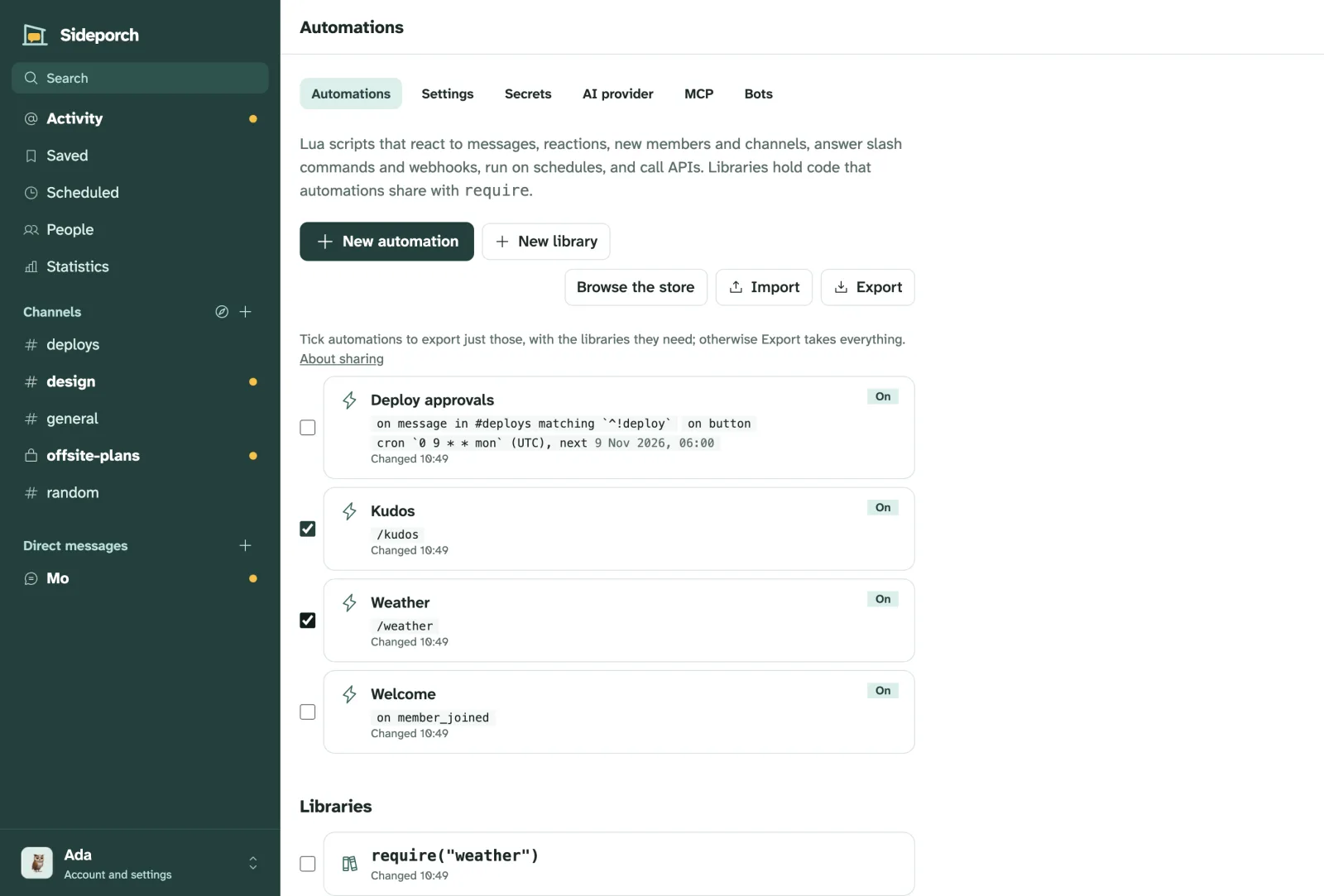
Your browser downloads a file named after the automation, like deploy-approvals.sideporch.json, or automations.sideporch.json for several. It holds:
- each automation’s and library’s name and script,
- every library the automations
require, even when you didn’t tick it, including libraries those libraries need, - the names of the secrets each script reads with
sideporch.secret, so whoever imports it knows what to set up.
It never holds secret values, the automation’s saved data, its run log, its webhook URL or its history. That makes a file safe to share, as long as nobody wrote a token straight into a script; keep those in secrets.
Importing
On the Automations page, press Import. Choose the file, or paste its text, and press Preview.
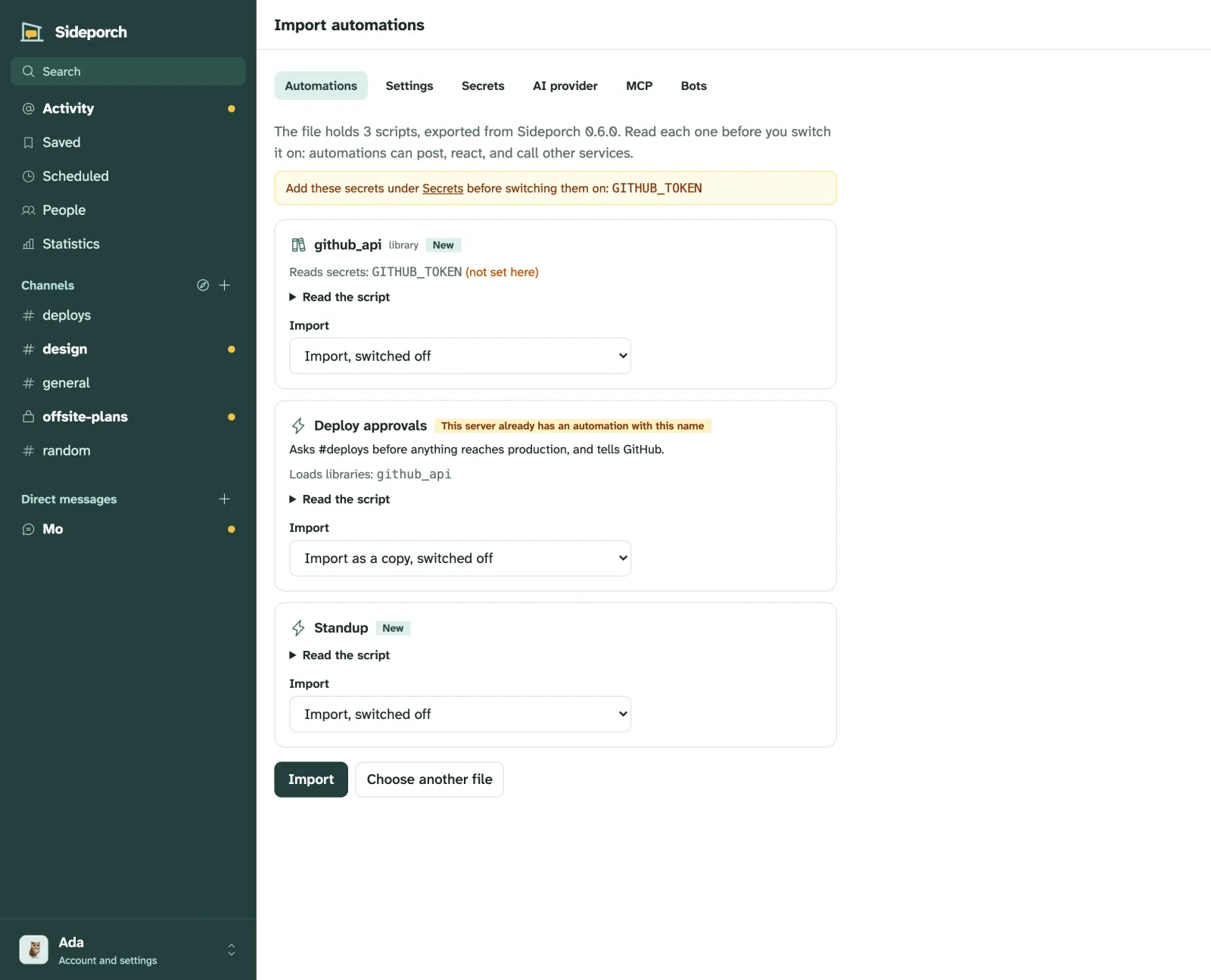
The preview lists every automation and library in the file:
- New, or that this server already has one with this name, or that it’s already here, unchanged.
- The secrets it reads, marked when this server doesn’t have them yet, and the libraries it loads, marked when they’re neither here nor in the file.
- What the linter found, and the script itself under Read the script.
Choose what to do with each:
| Choice | What happens |
|---|---|
| Import, switched off | Adds it. Offered for new ones. |
| Import as a copy | Adds it next to the existing one, named like Weather (imported). Offered for automations whose name is taken. |
| Replace | Overwrites the existing one’s script, and switches it off. Its webhook URL, data and history stay; the old script is one click away in its history. |
| Skip | Leaves it out. |
Libraries can only be imported, replaced or skipped: automations find them by name, so a copy under another name wouldn’t be used.
Press Import. The Automations page says how many were added.
From a web address
Under the file box, paste the address of a .sideporch.json file and press Fetch and preview. The server downloads it and shows the same preview. Only admins can do this, and the server refuses addresses on private or loopback networks unless the Automations settings allow them (the same setting that lets sideporch.http reach internal services). Downloads stop at 2 MB and a minute. The preview says whether the file is Signed by Sideporch or Not signed; a file that isn’t signed can only be imported after you tick a box confirming you trust whoever published it. The automation store checks files against their listed checksums and signatures the same way.
Settings
An automation can declare settings instead of asking people to edit its script. Each one in the item’s settings list has a name (what the script passes to sideporch.setting), a type, and optionally a label, a default of that type, and required:
"settings": [
  { "name": "greeting", "label": "Greeting", "type": "string", "default": "hello" },
  { "name": "room", "label": "Room", "type": "channel", "required": true },
  { "name": "loud", "type": "boolean", "default": false },
  { "name": "limit", "type": "number" }
]stringis text,numberis a number,booleanis true or false, andchannelis the name of a public channel, which the server checks when the value is saved.- The automation’s page shows a form for these. Values are saved on this server, not in the file, and they take effect as soon as they’re saved, without a restart.
- A required setting with no value and no default keeps the automation from switching on, and a switched-on automation can’t have its required setting cleared.
The script reads a value with sideporch.setting("greeting"), which returns nil when nothing is set.
After importing
Imported automations are switched off, because they can post, react and call other services with this server’s secrets. For each one:
- Open it and read the script. Change channel names to yours.
- Add the secrets it needs under Automations → Secrets.
- Run a test.
- Tick Run this automation and save.
A library needs no switch; it’s used as soon as a running automation requires it.
Agents connected over MCP can do the same with export_automations, preview_import and import_automations, and imports from them start switched off too.
The file format
The file is JSON, readable in any text editor:
{
  "format": "sideporch-automations",
  "version": 1,
  "sideporch": "0.6.0",
  "items": [
    {
      "kind": "library",
      "name": "weather",
      "source": "local weather = {}\n…\nreturn weather\n",
      "secrets": [],
      "requires": []
    },
    {
      "kind": "automation",
      "name": "Weather",
      "source": "local weather = require(\"weather\")\n…",
      "secrets": [],
      "requires": ["weather"]
    }
  ]
}formatandversionidentify the file. A server refuses other formats, and files from a newer version it doesn’t understand yet, with a note to update Sideporch.sideporchis the version that exported it.kindisautomationorlibrary.secretsandrequiresare informational: on import, Sideporch reads them from the script again rather than trusting the file.- Optional
description,author,licenseandhomepagefields, on the file or on an item, describe what’s shared. Sideporch shows descriptions in the preview. - Optional
settingson an item declare values an admin fills in on the automation’s page (see settings). Older servers ignore them.
Servers ignore fields they don’t know, so files can carry more without breaking older servers. A file holds at most 100 scripts and 2 MB.