The editor
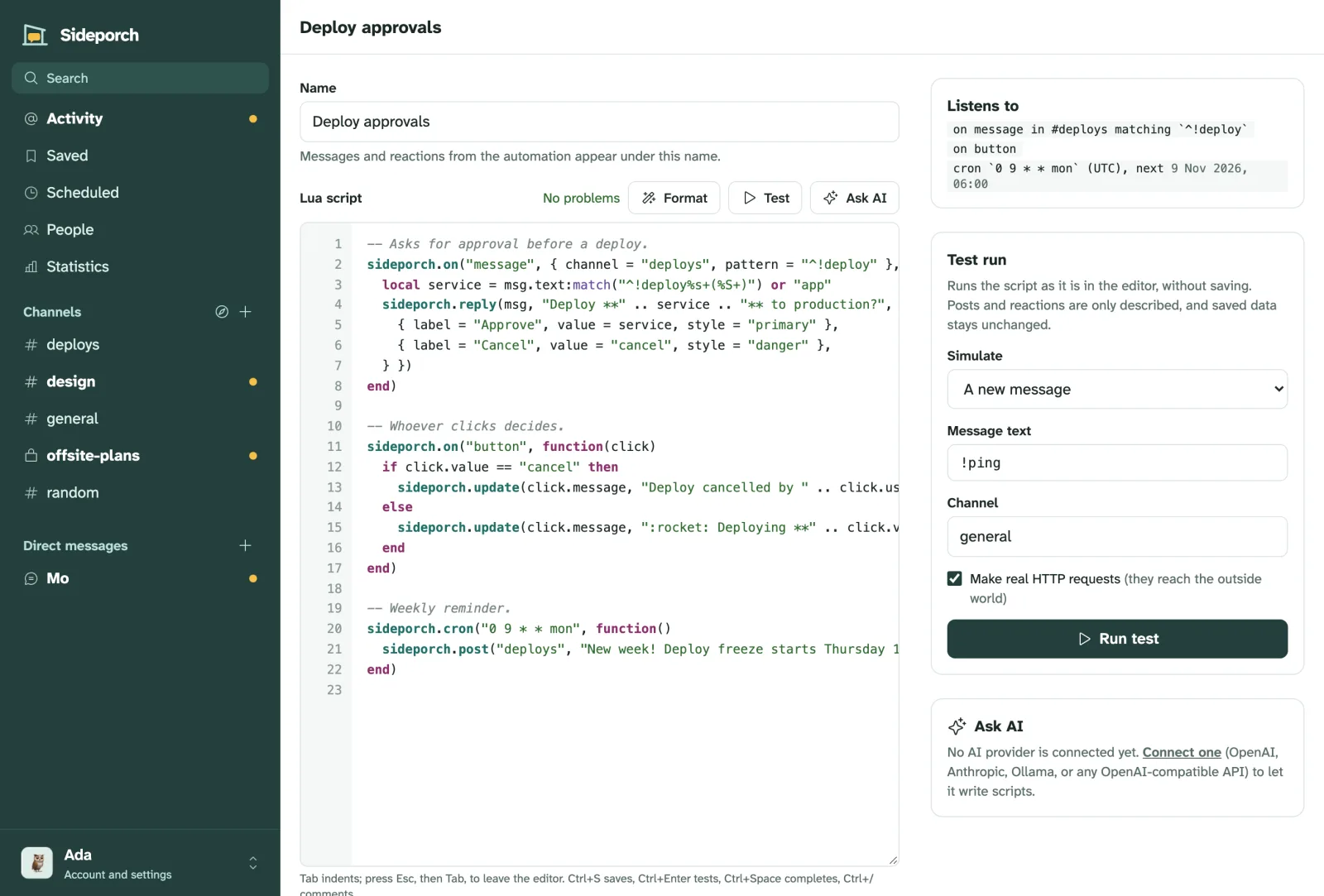
Every automation and library is written in the editor, under Automations in the account menu. It’s made for short scripts: it knows the sideporch API, checks the script as you type, and runs it against made-up events before anything goes live.
The page at a glance
- Name: for automations, the name their messages and reactions appear under. For libraries, the name other scripts pass to
require. - Lua script: the editor itself, with Format, Test and Ask AI above it, and the problems the linter found below it.
- Run this automation: the switch. Switched off, the script is saved but doesn’t run. Libraries have no switch; they run when an automation loads them.
- On the right, or below on narrow screens: Listens to, Test run and Ask AI.
- Further down, for saved automations: the Webhook URL, Recent runs and History, and at the bottom What scripts can do, the whole API reference, so you don’t have to leave the page.
The buttons under the editor save, Export the automation to share it (see Sharing), and delete it.
Writing
The editor highlights Lua, numbers lines, and keeps the indentation: Enter indents one level after function, then, do and opening brackets, and end moves back out on its own.
Type sideporch. and it suggests the API’s functions with their arguments; Ctrl+Space asks for suggestions anywhere. ↑ ↓ choose one, Enter or Tab takes it, Esc closes the list.
| Keys | What they do |
|---|---|
| Tab / Shift+Tab | Indent or outdent the line or the selected lines |
| Esc, then Tab | Leave the editor with the keyboard |
| Ctrl+Space | Suggest completions |
| Ctrl+/ | Comment or uncomment the selected lines |
| Shift+Alt+F | Format the script |
| Ctrl+Enter | Run a test |
| Ctrl+S | Save |
On a Mac, ⌘ works in place of Ctrl, except for Ctrl+Space. Leaving the page with unsaved changes asks first.
Without JavaScript the editor is a plain text box, and saving still works.
The linter
A moment after you stop typing, Sideporch checks the script with selene, set up for the sandbox. It catches what goes wrong most in short scripts:
- Typos in the API, like
sideporch.pots, and functions called with the wrong number of arguments. - Variables that don’t exist, usually a misspelled name, and ones you set but never use.
- What the sandbox doesn’t have, like
os.executeorio.open, with a note that it’s missing on purpose. - Syntax errors, such as a missing
end.
The count shows above the editor (2 errors, 1 warning), mistakes are underlined, and each problem is listed below the editor with its line. Click one to jump there. Saving works either way, but a script with a syntax error won’t load, and an undefined name usually means an error when that line runs.
The formatter
Format (Shift+Alt+F) rewrites the script with StyLua: two spaces of indentation, consistent quotes and spacing, long calls wrapped. It only changes layout, never what the script does, and Ctrl+Z undoes it.
Test runs
A test run loads the script as it is in the editor, without saving it, and fires one made-up event at it. Posts, replies, reactions and private answers are described instead of done, and sideporch.set changes a copy of the saved data, so a test never changes anything in your chat.
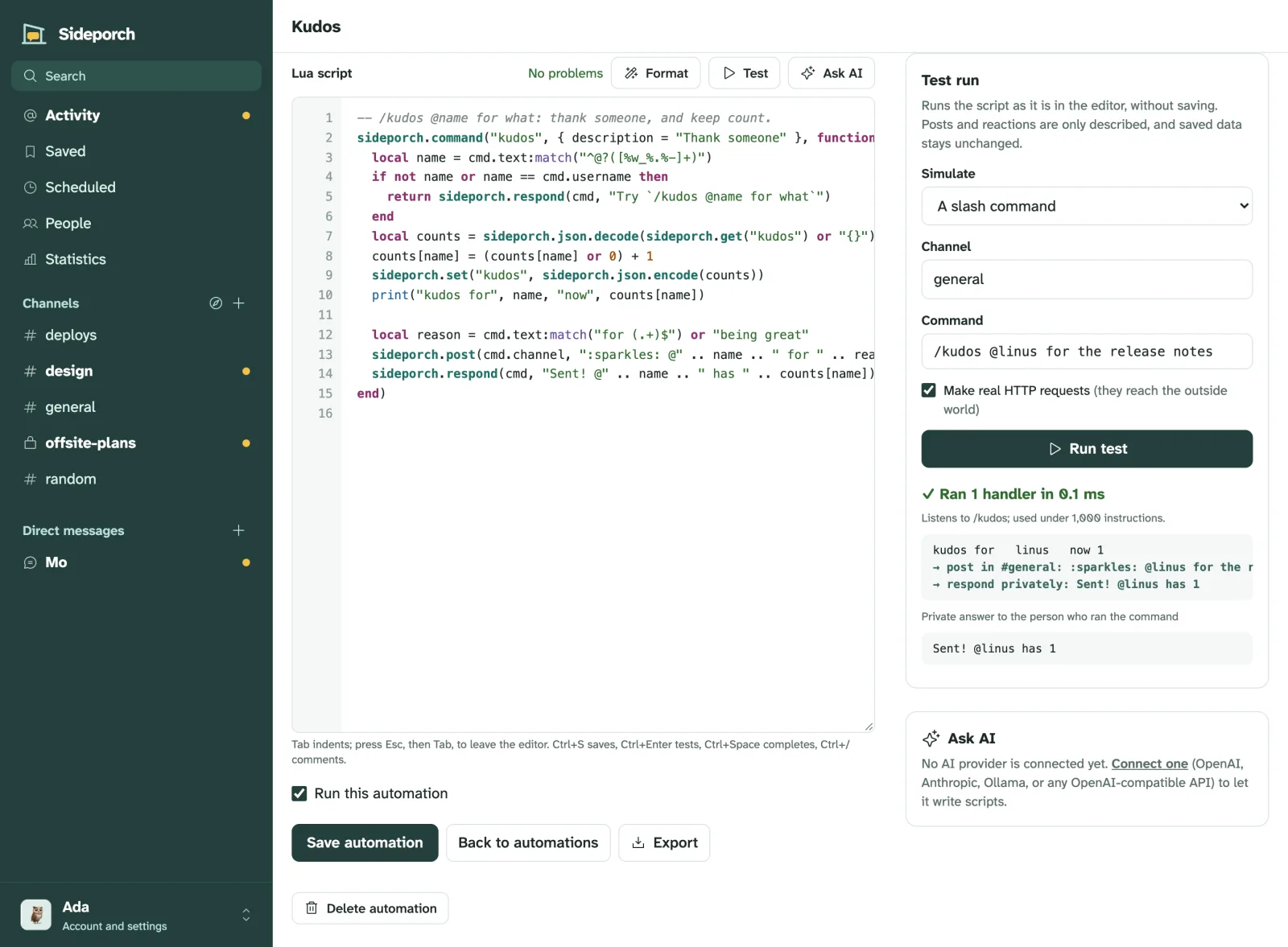
Choose what to simulate:
| Simulate | You fill in | Reaches |
|---|---|---|
| A new message | the text and channel | message handlers |
| A reaction | the emoji, channel, and whether it was added or removed | reaction_added, reaction_removed |
| A slash command | the command line, like /roll 20 | the command’s handler |
| A webhook request | the method, path and body | sideporch.on_webhook |
| Schedules firing | nothing | every cron and every handler at once |
| Someone joining | their name | member_joined |
| A new channel | its name | channel_created |
| Loading only | nothing | nothing; checks the script loads and lists what it registers |
The result shows, in order, what the script printed and what it would have done (→ post in #general: …), any error with its line, private answers, and the webhook response. It also says how many handlers ran and how many instructions and milliseconds the run took, which tells you how close it comes to the limits. No handler matched this event means the filter or pattern didn’t match.
Make real HTTP requests is on by default, so a script that calls an API gets real answers. Turn it off to test without reaching the outside world; sideporch.http then raises requests are switched off in this run. Secrets are available in test runs, and their values are hidden in the output.
For a library, a test run loads it and lists the names it exports.
Listens to
Once saved and switched on, this panel shows what the script registered: its events with their filters (on message in #alerts matching ^!ack), its schedules with the next time each runs, its commands, and whether it answers webhooks. It’s the quickest way to see that a filter says what you meant.
Webhook URL
Every automation has its own URL, shown under Webhook. Requests to it, and to paths below it, reach sideporch.on_webhook; see webhooks. Anyone with the URL can call it, so treat it like a password. Make a new URL replaces it, and the old one stops working at once.
Recent runs
Each run that printed something, posted, reacted, answered a webhook or failed is logged with what started it (message, reaction_added, cron, timer, command, webhook, …), when, how long it took, its output and its error. The newest 100 are kept. When a script stops with an error, the error also shows at the top of the page until the next save.
print is the way to see inside a running script:
sideporch.on("message", { channel = "alerts" }, function(msg)
  print("alert from", msg.author, "with", #msg.text, "characters")
end)
History
Every save that changes the script keeps it as a version, with who saved it and how: in the editor, by Ask AI, by an agent over MCP, by an import, or by restoring an older version. Open a version to read it, and Restore it to save it as the newest. The last 50 versions are kept.
Ask AI
With an AI provider connected under Automations → AI provider, Ask AI writes a script from a description, or changes the one in the editor. It lints and test-loads its answer, fixes what fails, and shows the result for you to read. Nothing replaces your script until you choose Use this script. See AI and MCP.
Libraries
New library opens the same editor for code that automations share with require, such as a client for an API. A library’s name must work as a Lua module name: lowercase letters, digits and underscores, starting with a letter. Saving a library restarts the automations that use it. See libraries.